Wednesday, April 7, 2010

one-liner: mount the current directory to a temporary top-level drive letter

Suppose you're doing command line stuff in some ridiculously deep folder, e.g. C:\some path\to some\ridiculously deep\folder\way down\below a reasonable\level>, so the default command prompt pushes way over to the right edge of the screen, and any output containing the wraps 3 times in the window, and it's just really hard to read:
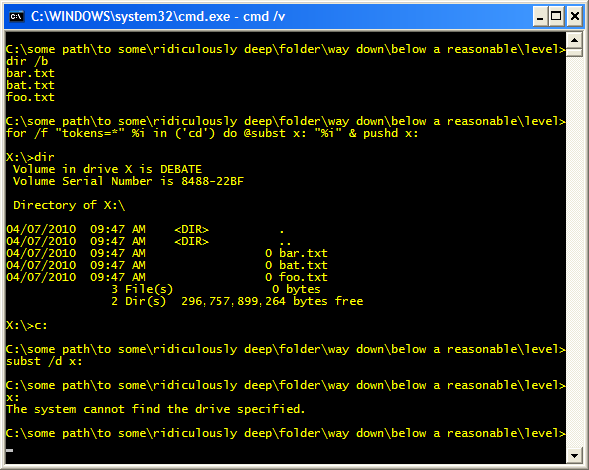


The following one-liner will "substitute" a temporary drive x: for the current path, effectively mounting C:\some path\to some\ridiculously deep\folder\way down\below a reasonable\level> as x:\

for /f "tokens=*" %i in ('cd') do @subst x: "%i"

Delete the temporary drive with the command subst /d x:

Tuesday, April 6, 2010

Substituting characters inline

Use the following technique to make character substitutions on the fly from DOS command results.

Given a file listing with underscores in the file names, e.g.
foo_first.txt
foo_second.txt
foo_third.txt

This is ugly, but it works. Start a new command shell with delayed variable expansion option cmd /v, then run the following one-liner, e.g. to replace the underscores with spaces:

C:\>for /f %i in ('dir /b') do @set x=%i & echo !x:_= !

The result will be:
foo first.txt
foo second.txt
foo third.txt

The first trick, delayed variable expansion, is enabled by starting a new command shell with the /v option. This lets you set and change a variable's value at runtime by surrounding the variable with bangs ! instead of percents %. Normally, the default no immediate variable expansion would not update the x variable each time dir /b returns a line. Only the last value set to x is echoed each time:

foo third.txt
foo third.txt
foo third.txt

The second trick, character substitution, is set by !x:_= !.

You can substitute other characters, e.g. !x:abc=def! would turn abcxyz.txt into defxyz.txt

Wednesday, March 17, 2010

The Metric Law of 90s

Thanks to Bruce F. Webster, who reminded me of this hoary old saying:
The first 90 percent of a development project takes 90 percent of the schedule.

The remaining 10 percent of the project takes the other 90 percent of the schedule.

Note (15 April 2010) - discovered this is also known as the Ninety-ninety Rule

Thursday, March 11, 2010

Experience

This notion puzzled me for some time: Have you got X years' experience [cooking, programming computers, running a business], or one year, repeated X times?


Simply, have you grown? Are you doing something new this year, something you couldn't have comprehended X years ago? Did you acquire a new skill, learn a new point of view, make a new friend, visit a new place?

If not, you're on the hamster wheel. Time to bail out.

Tuesday, January 5, 2010

How to run SQL*Plus one liners on Windows

Suppose you have a simple one line query to run on your Oracle database. Oddly, SQL*Plus doesn't take SQL statements as a command line parameter.

For a simple one liner, it's often too much work to start up sqlplus, logon, type in the SQL statement, then exit. It may also be too trivial to save the SQL statement to a file that you then call from sqlplus, e.g. C:\>sqlplus user/pass @myfile.sql.

To do it all in one line on the command prompt, echo the statement into sqlplus:

echo select count(*) from mytable; | sqlplus user/pass

This technique would probably also work on a Unix box, but I don't have an Oracle db installed on a Unix box to test it out.

Wednesday, December 9, 2009

Peak Prices?

I've had Oil 101 in my Amazon.ca cart for a few weeks. Just not ready to read it yet. When I checked my cart today, I was unpleasantly surprised to read this note:

Please note that the price of Oil 101 has increased from CDN$ 23.20 to CDN$ 36.97 since you placed it in your Shopping Cart. Items in your cart will always reflect the most recent price displayed on their product detail pages.

How does Amazon justify boosting the price by almost 60% in just a couple of months? Perhaps, like the book's subject, we've reached "Peak Books"...

Tuesday, May 5, 2009

gnu find and grep: using path patterns to match more than one file extension

Example using Cygwin gnu find, xargs and grep to search for a typo in XSLT and XML files. Note that -iregex matches a pattern in the whole path, and the pattern is a POSIX basic regex:

C:\>find ./ -iregex '.*\.\(xslt\^|xml\)' -type f -print | xargs grep -i "staus"


When find matches a file path, the path is piped to xargs, which hands it off to grep to search for the string "staus" - which I want to replace with "status" (but not here :).